8 Criteria for Evaluating Online Graphics Tools and Asset Libraries
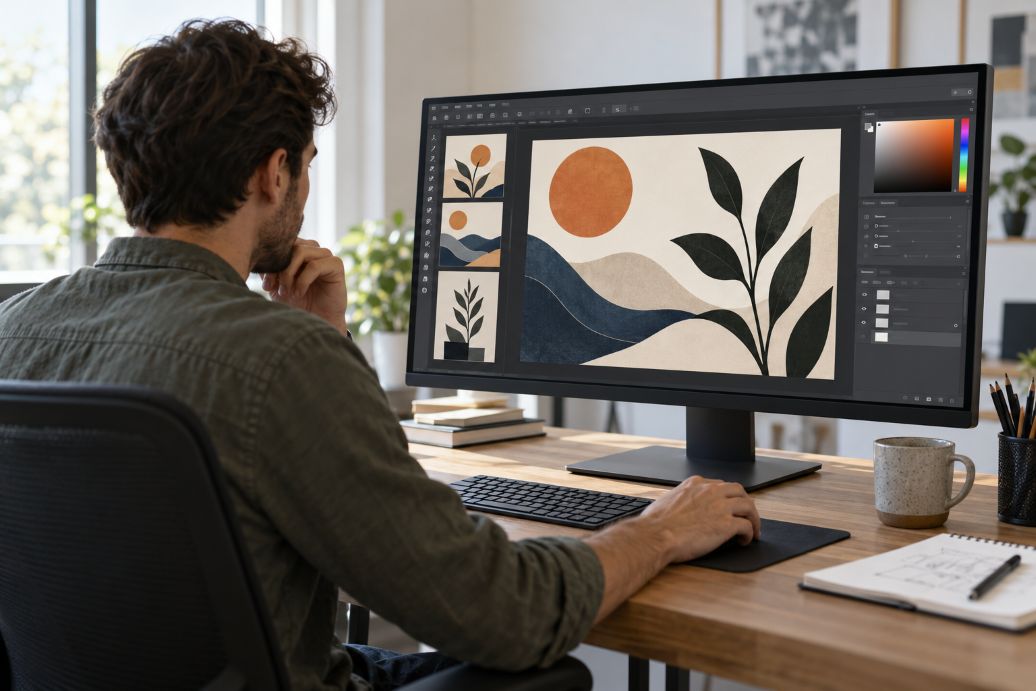 Raster images store visual information as pixels, while vector graphics use scalable shapes, as Adobe explains in its graphics documentation. That distinction matters when choosing online design resources. A tool suited to editing photographs may offer little control over illustrations. Evaluate each option against the intended project, starting with the required output rather than the template gallery.
Categorized browsing through Websites by Category (카테고리별 웹사이트) can provide a starting point for discovering alternatives. Build a shortlist, then check each provider’s documentation and test representative files. For freelancers, educators, and small teams, the useful question is practical: can this resource produce the right result, under acceptable conditions, without creating extra work later?
1. Does It Support the File Formats You Need?
Check import and export formats separately. Being able to upload a file does not establish that you can download an editable version. Canva, for example, documents different download formats for different purposes, including JPG, PNG, PDF, and presentation exports.
List the files your workflow requires before testing. Include incoming client materials and final deliverables. Open an exported sample in its destination application. Check transparency, text, and layout instead of assuming that a familiar file extension guarantees a clean handoff.
2. What Can You Actually Do With Vectors and Pixels?
Adobe distinguishes pixel editing from working with scalable vector shapes. Use that distinction to examine capabilities beyond a product’s description. For photographs, test cropping, selection, and color adjustments. For illustrations, try changing paths, fills, outlines, and individual shapes.
Apply the same scrutiny to downloaded assets. Try selecting separate components rather than moving the entire illustration. If your assignment requires recoloring individual objects, make that a requirement. Judge the resource by the edits you need to perform, rather than the appearance of its preview.
3. Are Resolution and Scaling Limits Suitable?
Assess image dimensions against the final output size. Adobe identifies 300 pixels per inch as a common standard for high-quality printing, while explaining that large prints viewed from farther away may work at lower resolutions. Confirm the specification with your printer.
For example, an image measuring 1,800 pixels across provides six inches of width at 300 pixels per inch. Use this calculation before approving an asset. Test the largest required export, then inspect fine details and edges at the intended display or print size.
4. What Do the License and Attribution Terms Allow?
Creative Commons describes licenses with different conditions for attribution, commercial reuse, and sharing adaptations. Its Non-Commercial licenses restrict commercial use, while NoDerivatives licenses prohibit sharing adapted versions. Read the specific terms attached to the selected work rather than relying on a general download label.
For other libraries, check the provider’s own agreement. Look for terms covering your intended use, client delivery, modification, and redistribution. Save the asset’s source and applicable license details. If attribution is required, decide where the credit will appear before approving the design.
5. Is the Asset Collection Consistent and Relevant?
Evaluate quality with a sample that reflects your actual assignment. Search for several related subjects, then compare proportions, line weights, lighting, and visual style. Treat these as selection criteria rather than accepting the first attractive result. Ask whether the collection supports a coherent finished design.
Test variety within that style. For a presentation, try finding matching illustrations for three different slides. For a website, assemble a small icon set. Record missing subjects and awkward substitutions. This gives you a concrete basis for comparing collections beyond their advertised asset counts.
6. How Much Editing and Customization Is Available?
Separate the ability to place an asset from the ability to modify it. Adobe explains that flattening merges layers into a single image. When future revisions matter, check whether your working file retains the separate elements you expect to change.
Run a small editing exercise. Replace a photograph, adjust colors, change a heading, and resize the composition. Then save, reopen, and revise it again. For shared work, ask a colleague to make one change. Use the results to judge whether the workflow suits the people maintaining it.
7. Will It Work on Your Browser and Device?
Review the service’s published technical requirements. Canva specifies supported browsers, requires JavaScript, and recommends a stable internet connection to avoid saving problems. Check the relevant documentation for every shortlisted tool rather than assuming all browser-based editors have identical requirements.
Test with your usual equipment and a representative project. Upload images, move objects, save changes, and download the result. If mobile editing matters, repeat essential tasks on that device. Record any difficulty selecting objects or navigating controls, and judge whether those limitations affect your everyday work.
8. What Restrictions Apply to the Final Export?
Inspect the download controls before investing time in a complete design. Canva documents account-dependent options for features such as transparent backgrounds, SVG downloads, and certain quality settings. It also warns that presentation exports may look different when opened in PowerPoint.
Check the exact account tier you intend to use. Export a sample and inspect its dimensions, background, fonts, and image quality. For portfolio projects, consider the published result too. Alongside checking exported graphics, evaluating a graphics portfolio’s online visibility can form part of a broader website review. Include any required upgrade in your comparison, and confirm that the final files meet your publishing needs.
Match the Criteria to the Deliverable
For web graphics, prioritize suitable dimensions, transparency, and manageable files. For presentations, test readability and editability in the receiving application. For print, confirm physical size, resolution, color requirements, and bleed with the printer. Revisit these priorities whenever the deliverable changes. A categorized shortlist becomes useful when every candidate faces the same practical test.